

Common cPanel issues and Quick Fixes for WordPress Sites
cPanel remains the go-to control panel for thousand of WordPress sites and managed hosting accounts. But even seasoned users encounter frustrating issues – often late at night or over weekends when regular support is unavailable.
For small agencies and hosting providers, these problems can quickly escalate into client complaints, lost revenue, and team burnout. The good new is that most common cPanel issues have fast, reliable fixes – and with proper after hours hosting WordPress support, they can be resolved before the client even notices.
This guide covers the top 5 cPanel problems WordPress users face, their causes, and step-by-step fixes that can usually be applied in under 2 hours.
1. White Screen of Death (WSOD)
Symptoms: Blank white screen instead of the site frontend or wp-admin dashboard.
Common causes:
- PHP memory limit exceded
- Plugin or theme conflict after an update
- Corrupted .htaccess file
Quick fixes:
- Increase PHP memory limit (add to wp-config.php)
define ('WP_MEMORY_LIMIT', '256M');
- Disable plugins via FTP: rename wp-content/plugins to plugins-old → reload site → rename back one by one to identify the culprit.
- Rename .htaccess to .htaccess-old → go to Dashboard → Settings → Permalinks → Save to regenerate a fresh file. Alternative option is to manually create the .htaccess file, copy & paste the below arguments within the fresh file.
					# BEGIN WordPress

<IfModule mod_rewrite.c>
RewriteEngine On
RewriteBase /
RewriteRule ^index\.php$ - [L]
RewriteCond %{REQUEST_FILENAME} !-f
RewriteCond %{REQUEST_FILENAME} !-d
RewriteRule . /index.php [L]
</IfModule>

# END WordPress
Time to fix: 15-45 minutes
Prevention tip: Aways test updates on staging first and keep PHP memory at least 256M
2. DNS Propagation Delays or Errors
- Recent name server change or domain transfer
- Incorrect A, CNAME, or TXT records in cPanel
- Verify name servers match your host’s (cPanel → Zone Editor).
- Flush local DNS cache:
- Windows : ipconfig /flushdns (command prompt)
- Mac: sudo killall -HUP mDNSResponder
- Check propagation status on dnschecker.org or whatsmyip.org
Prevention tip: Lower TTL before making DNS changes
3. 500 Internal Server Error
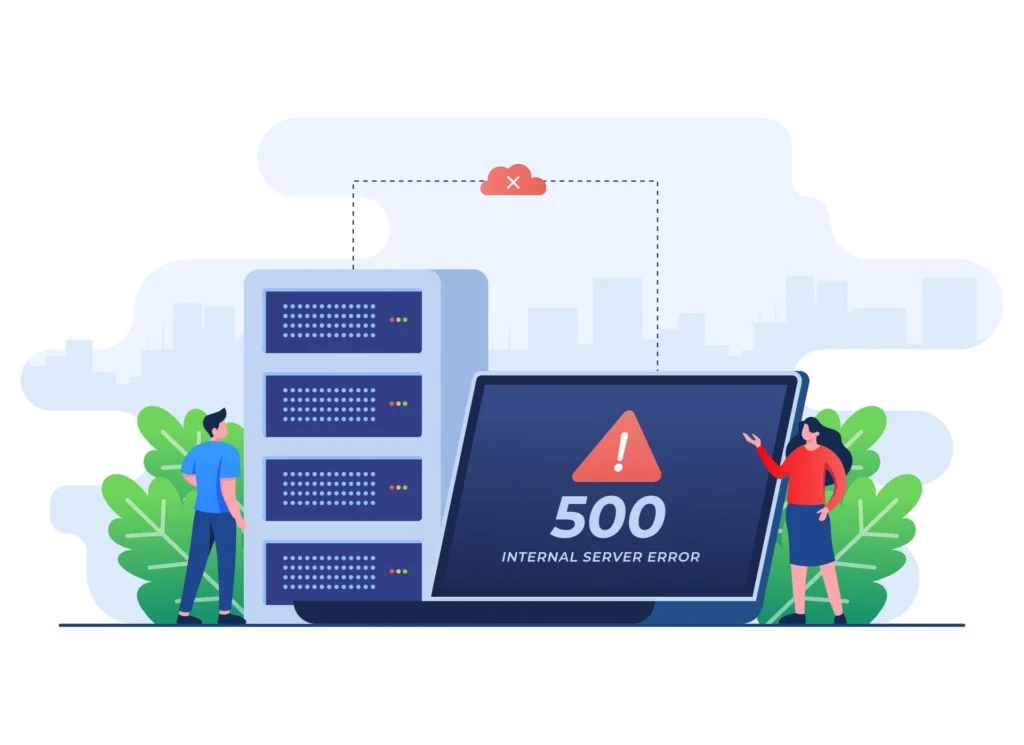
Symptoms: Generic “500 Internal Server Error” page on site or admin
Common causes:
- Incorrect file/folder permissions
- Broken .htaccess rules
- PHP version incompatibility or fatal error
Quick fixes :
- Check error logs (cPanel → Metrics → Errors) for the exact cause. Alternatively you can turn on PHP error reporting in cPanel either via PHP Selector or via MultiPHP Manager (Depends on how PHP for your site/domain is managed).
- Rename .htaccess to .htaccess to .htaccess-old (WordPress will regenerate it on next permalink save or you can follow the manual .htaccess file generation method specified above).
- Fix permission: folders 755, files 644 (Use File Manager or FTP).
- Switch PHP version (cPanel → Software → MultiPHP Manager/PHP Selector) – try 8.1 or 8.2.
Time to fix: 10-60 minutes
Prevention tip: Backup .htaccess before changes, test PHP upgrades on staging.
4. Email Delivery Failures (Outgoing Emails Not Arriving)
Symptoms: WordPress notifications, password resets, contact form submissions never reach inbox.
Common causes:
- Hosting blocks port 25 (common on shared plans)
- Missing SPF/DKIM records
- High spam score or blacklisting
Quick fixes:
- Install & configure WP Mail SMTP plugin use Gmail, SendGrid, Brevo, or SMTP.com as relay
- Add SPF & DKIM records in cPanel → Zone Editor (follow provider instructions).
- Check spam folder & request delisting if blacklisted (mxtoolbox.com)
Time to fix: 30-90 minutes
Prevention tip: Never send mass emails from hosting server – use dedicated transaction email service.
5. Slow Loading or Resource Limit Warnings
Symptoms: Site slow, CPU/memory alerts from host, or “Resource Limit Reached” error.
Common causes:
- Unoptimised database or slow queries
- Too many resource-heavy plugins
- Shared hosting resource limits
Quick fixes:
- Install Query Monitor plugin → identify slow queries/plugins.
- Optimise database (WP-Optimize or Advanced Database Cleaner).
- Enable caching (LiteSpeed Cache, WP Rocket, or Cloudflare APO).
- Upgrade hosting plan or migrate to VPS/cloud.
Time to fix: 30-120 minutes
Prevention tip: Schedule monthly optimisation, limit plugins to <25, choose performance-optimised host.
Why After-Hours Support Is Critical for These Issues
Most cPanel and WordPress issues don’t wait for Monday. Waiting 24-72 hours for a fix can mean lost sales, angry clients, and damaged reputation.
Reliable after hours hosting WordPress support ensures:
- Immediate response to critical issues.
- White-label handling – your brand stays front and centre
- Secure fixes without exposing your team
- Peace of mind for you and your clients
Vynvex offers exactly that: $399/mo coverage (6 hrs weekdays + up to 12 hrs weekends), full ticket handling in your system, and a Free Trial Day – a full weekend/weekday shift at no cost or commitment.
Book Your Free Trial Day
Final Thought
Weekend cPanel and WordPress issues don’t have to derail your agency or hosting business. With the right knowledge and the right partner, you can resolve them quickly – and keep your team sane.
Ready to test what real after-hours support feels like?
Book a Free Trial Day – up to 12 hours of live support on a weekend or up to 6 hours on a weekday. No payment, no obligation – just proof we can help.
Questions? Reach out to us – we’re here to help
#AfterHoursHostingWordPressSupport #cPanel #WordPressSupport #WebHosting #AgencyLife

Shonal Imbulgoda
Managing Director Vynvex Technologies Ltd.