
How to Fix the WordPress White Screen of Death (Step-by-Step Guide)
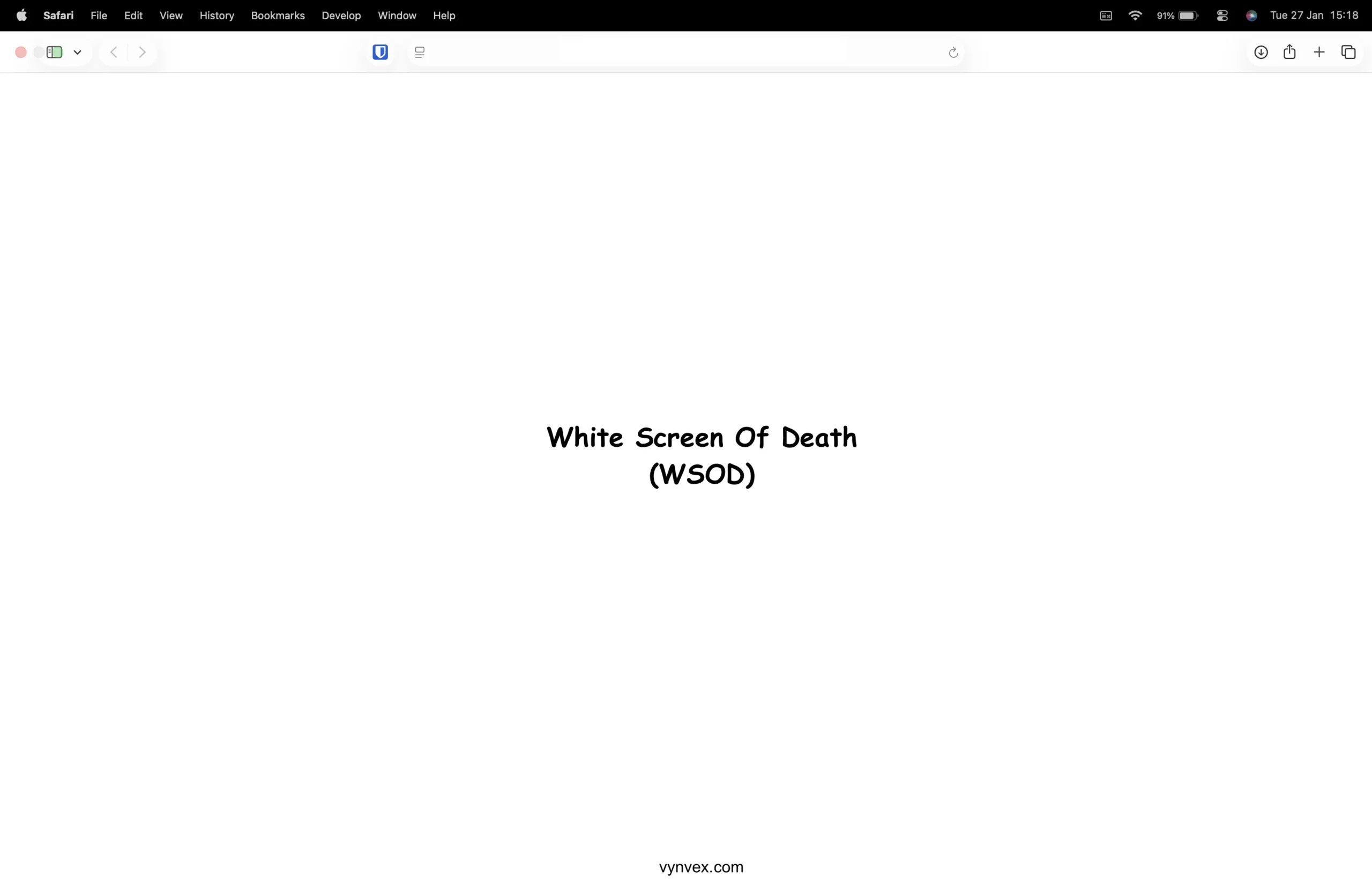
The WordPress White Screen of Death (WSOD) is one of the most frustrating issues a website owner can face. No error message. No warning. Just a blank white page – sometimes on the front-end, sometimes in wp-admin, and sometimes everywhere.
In this guide, we’ll walk through exactly how to diagnose and fix WSOD, step by step, even if you have limited access to your site.
What is the WordPress White Screen of Death?
The White Screen of Death occurs when WordPress encounters a fatal PHP error but is unable to(or not configured) to display it.
Common symptoms include:
- A completely blank page on the website
- White screen only on wp-admin
- White screen after updating a plugin, theme, or WordPress core
- White scree appearing suddenly, often outside business hours
Common Causes of the White Screen of Death
Before fixing it, it helps to understand why it happens:
- Faulty or incompatible plugin
- Broke or outdated theme
- PHP memory exhaustion
- PHP version incompatibility
- Corrupted WordPress core files
- Fatal errors hidden by server configuration
Step-by-Step: How to Fix the WordPress White Screen of Death
Step 1: Enable WordPress Debug Mode
If you still have access to files, debugging is the fastest way to identify the root cause.
Edit your wp-config.php file and add:
					define ( 'WP_DEBUG', true );
define ( 'WP_DEBUG_LOG', true );
define ( 'WP_DEBUG_DISPLAY', true );
Reload the page.
If an error appears, note the plugin, theme, or file path mentioned.
Tip: If errors appear publicly, disable WP_DEBUG_DISPLAY after diagnosing
Step 2: Disable All Plugins (Most Common Fix)
Plugin conflicts are the number one cause of WSOD.
If you can’t access wp-admin:
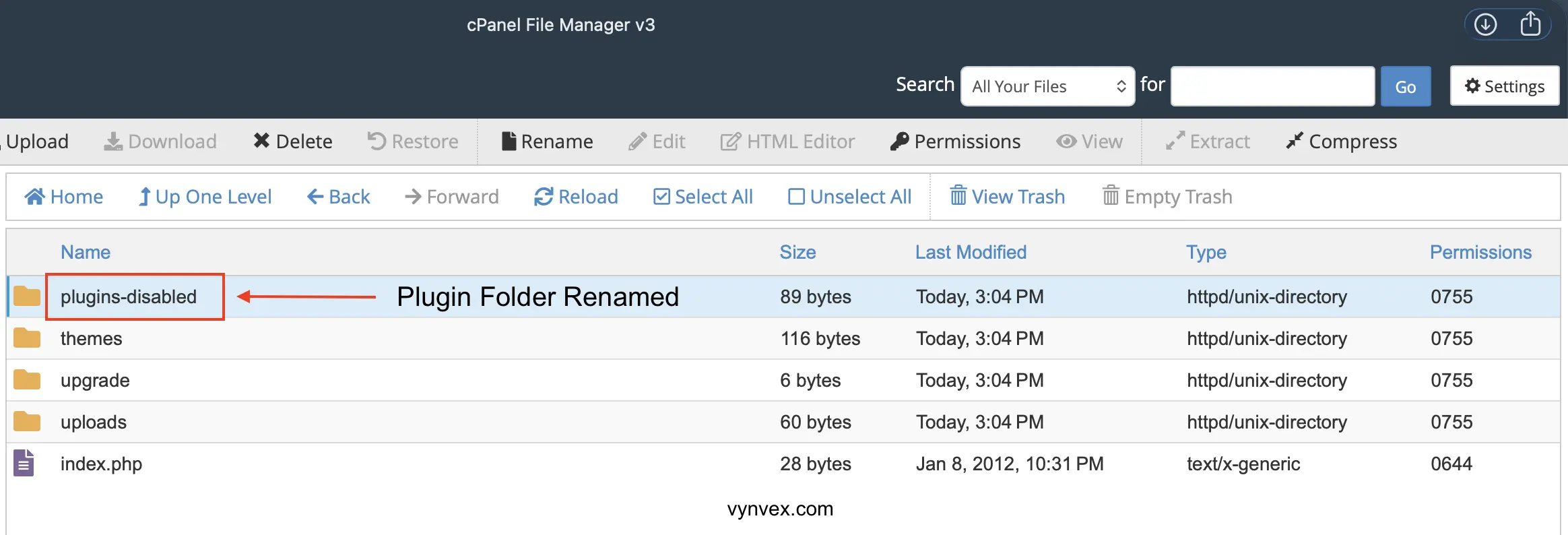
- Connect via FTP or File Manager
- Rename the wp-content/plugins folder to plugins-disabled
If the site loads again:
- Rename the folder back to plugins
- Enable plugins one by one until the error returns
The last plugin activated is the culprit.
Step 3 : Switch to a Default Theme
If plugins aren’t the issue, the theme may be broken.
Via FTP:
- Go to wp-conent/themes
- Rename your active theme folder
- WordPress will automatically fall back to a default theme (like Twenty Twenty Four)
if the site loads, your theme is the cause.
Step 4: Increase PHP Memory Limit
Memory exhaustion can silently crash WordPress.
Add this to wp-config.php:
define ( 'WP_MEMORY_LIMIT', '256M' );
If you’re on shared hosting, you may also need your host to increase the limit at the server level.
Step 5: Check PHP Version Compatibility
Newer PHP versions can break older plugins or themes.
Try switching PHP versions:
- From PHP 8.2 → 8.1 or 8.0
- Or back to a known stable version (7.4 though deprecated is very stable)
If the site loads after changing PHP versions, you’ve found the compatibility issue.
Step 6: Re-upload Core WordPRess Files
If all else fails:
- Download a fresh copy of WordPress
- Upload everything except wp-content and wp-config.php
This replaces corrupted core files without affecting your content
When the White Screen Happens After Hours
Many WSOD incidents occur:
- After automatic updates
- During low-traffic hours
- When no one is monitoring the site
This is why after-hours WordPress support is critical for businesses that can’t afford downtime.

Preventing the White Screen of Death in the Future
Best practices:
- Disable automatic plugin updates on production sites
- Test updates in staging environments
- Keep backups before every update
- Monitor sites after hours
- Avoid abandoned plugins and themes
Need Help Fixing WordPress WSOD Fast?
If your site goes white outside business hours, waiting until morning can mean:
- Lost leads
- Lost sales
- Damaged trust
Vynvex provides white-label after-hours WordPress and hosting support, so issues like this are diagnosed and resolved while your team is offline.
👉 Learn more about our after-hours support services at vynvex.com
Book a risk-free trial day with no commitment, no payment. We work a full shift just like a paid month.
Book Your Free Trial Day
Got any Questions ? Feel free to reach out to us – we’re more than happy to assist you.
#WSOD #WhiteScreenOfDeath #WebHosting #WordPressTroubleShooting #HostingBrands #AgencyLife

Shonal Imbulgoda
Managing Director Vynvex Technologies Ltd.